How to Connect a Custom Domain to Your Komerza Store (Step-by-Step Guide)
Want to give your e-commerce store a professional touch with a custom domain? Connecting your own web address to your Komerza…
2 min read
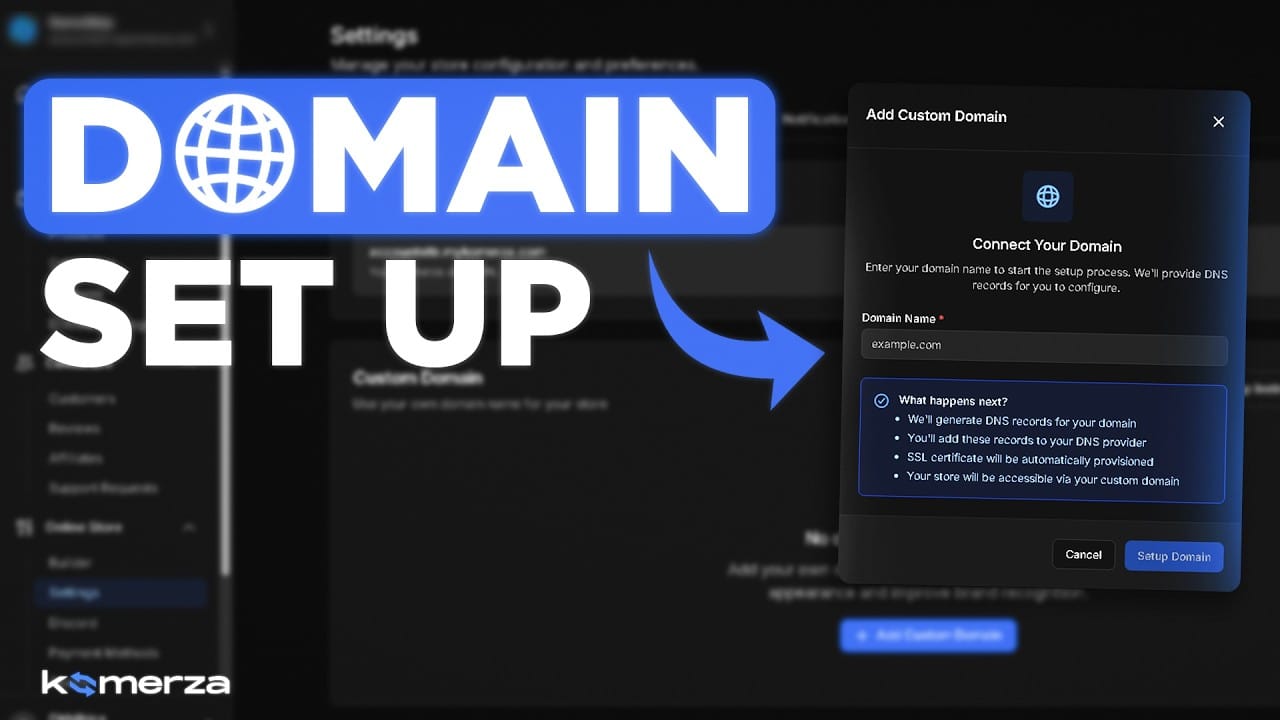
How to Connect a Custom Domain to Your Komerza Store (Step-by-Step Guide)
Want to give your e-commerce store a professional touch with a custom domain? Connecting your own web address to your Komerza store boosts brand credibility and improves your search engine rankings.
This guide walks you through setting up a custom domain on Komerza using Cloudflare DNS in just a few quick steps.
Why Use Cloudflare DNS for Your Komerza Store?
Komerza relies on Cloudflare DNS to manage custom domains. Cloudflare provides essential SSL security, fast DNS routing, and protection against web traffic overload—ensuring your online shop remains online, safe, and fast for every customer.
Step-by-Step Guide to Connecting Your Domain
Step 1: Create a Cloudflare Account
- Visit https://dash.cloudflare.com/sign-up and register a free account.
- Log in once your account is active.
Step 2: Add Your Domain to Cloudflare
- Click Add a Site in your Cloudflare dashboard.
- Type in your root domain (e.g., yourstore.com) and choose the Free plan.
- Cloudflare will scan your current DNS configuration. Click continue until you see your two newly assigned Cloudflare nameservers. They will look similar to this:
aaron.ns.cloudflare.com
bella.ns.cloudflare.com
Step 3: Update Nameservers at Your Domain Registrar
Log into the platform where you purchased your domain (like Namecheap, GoDaddy, or Hostinger) to point your domain to Cloudflare:
- Namecheap Users: Navigate to Domain List > Manage > Nameservers, select Custom DNS, paste both Cloudflare nameservers, and click the green checkmark to save.
- Other Registrars: Find your domain's DNS Management or Nameservers section, switch to Custom Nameservers, paste your Cloudflare nameservers, and save changes.
Step 4: Configure DNS Records in Cloudflare
Once Cloudflare marks your domain as active, point it directly to Komerza:
- Open your domain on the Cloudflare dashboard and go to DNS > Add Record.
- Configure the CNAME record:
Type: CNAME
Name: @
Target: fallback.mykomerza.com
Proxy status: Proxied (Orange Cloud)
(Note: If you want to use a subdomain like shop.yourstore.com, enter shop for the Name instead of @.)
Important: Your domain will not connect if the cloud icon is set to "DNS Only" (Grey). Make sure to delete any pre-existing A or CNAME records for @ to prevent conflicting settings.
Step 5: (Optional) Set Up www to Root Redirect
To automatically forward visitors from www.yourstore.com to yourstore.com:
- Add an A Record: Create an A record in Cloudflare DNS with:
Type: A
Name: www
IPv4 address: 192.0.2.0
Proxy status: Proxied (Orange Cloud)
- Create a Page Rule: Go to Rules > Page Rules > Create Page Rule:
URL Pattern: www.yourstore.com/*
Setting: Forwarding URL
Status Code: 301 - Permanent Redirect
Destination URL: https://yourstore.com/$1
Step 6: Wait for DNS Propagation
DNS updates usually take effect within a few minutes, but global propagation can take 24 to 48 hours. You can track global DNS progress anytime using https://dnschecker.org/.
Troubleshooting Common Issues
| Issue | Quick Fix |
|---|---|
| Domain not loading after 48 hours | Double-check that your CNAME points to fallback.mykomerza.com and Proxy status is Orange (Proxied). |
| SSL / HTTPS Certificate Errors | In Cloudflare, go to SSL/TLS and ensure encryption mode is set to Full or Full (Strict). |
| www redirect not functioning | Ensure both the www A record exists in Cloudflare and your Page Rule is enabled. |
| Cloudflare status stuck on "Pending" | Nameserver propagation is still in progress. Re-check your registrar settings and wait a few hours. |
For the full technical reference and documentation index, check out the official Komerza Custom Domain Documentation: https://docs.komerza.com/guides/custom-domain